


If you use your PC regularly and you experiment on various softwares, then you may have a bunch of software packages on your hard drive and some of them might be no longer needed, or they were installed by you somehow. Tool bars, file-sharing programs, free email enhancers and download managers are notorious for this practices.. These uninvited ones can affect your startup time a lot and cause webpages to load slowly, and generally slow down your computer!
1. Click Start button
2. Select Control Panel
3. Double-click Add/Remove Programs icon
4. See what programs are installed that you don’t typically use
5. Select the Remove button for the ones you know you don't need in specific!
If you’re unsure about some programs, then do not remove and if you do, do a google search so that you will know what you are doing!!!!
Showing posts with label how to increase computer speed. Show all posts
Showing posts with label how to increase computer speed. Show all posts
June 12, 2009


Improve PC Speed - Disable File Indexing
Indexing Services is a small little program that uses large amounts of memory and can often make a computer endlessly loud and noisy. This system process indexes and updates lists of all the files that are on your computer. It does this so that when you do a search for something on your computer, it will search faster by scanning the index lists. If you don’t search your computer often, this system service is completely unnecessary.
To disable do the following:
1. Click Start button
2. Select the Control Panel
3. Double-click Add/Remove Programs
4. Click the Add/Remove Window Components icon on the left side of the window.This
may take a few seconds to load. Be patient.
5. Look for the "Indexing Services" component in the list
6. Uncheck the Indexing Services
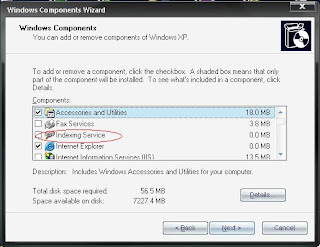
7. Click Next and then Click Finish
To disable do the following:
1. Click Start button
2. Select the Control Panel
3. Double-click Add/Remove Programs
4. Click the Add/Remove Window Components icon on the left side of the window.This
may take a few seconds to load. Be patient.
5. Look for the "Indexing Services" component in the list
6. Uncheck the Indexing Services

7. Click Next and then Click Finish
June 11, 2009
Increase PC Speed - Run Disk Clean-Up
If you use the System regularly, both Windows and application programs tend to leave temporary files lying around on your hard drive, taking up huge space. A hard drive that is close to being “full” can cause Windows to slow down or interfere with efficient disk access and virtual memory operations. This will ultimately affect your system's performance!
And moreover, if you surf the web a lot, your temporary internet files folder can become quite large, causing Internet Explorer to slow down or malfunction. Cleaning up unneeded files, scanning for disk errors and defragmenting the hard drive can help to restore some zip to your system.
Try to run once a month for peak performance. How can you do this? Here you go...
1. Double-click the My Computer icon.
2. Right-click on the C: drive (if your OS is installed on C)
3. Select Properties
4. Click the Disk Cleanup button (to the bottom-right of the Capacity pie graph)

5. Select check Temporary Internet Files and Recycle Bin

6. Click OK

And moreover, if you surf the web a lot, your temporary internet files folder can become quite large, causing Internet Explorer to slow down or malfunction. Cleaning up unneeded files, scanning for disk errors and defragmenting the hard drive can help to restore some zip to your system.
Try to run once a month for peak performance. How can you do this? Here you go...
1. Double-click the My Computer icon.
2. Right-click on the C: drive (if your OS is installed on C)
3. Select Properties
4. Click the Disk Cleanup button (to the bottom-right of the Capacity pie graph)

5. Select check Temporary Internet Files and Recycle Bin

6. Click OK

Increase Computer Speed - Reduce Page File Size
Firstly Lets know - What is a Page File?
In storage
2. Click the Advanced tab
3. Click the Settings button under the Performance section
4. Click the Advanced tab
5. Under the Virtual Memory section click the Change button
6. "Virtual Memory" dialogue box will appear (also shown in the 3 figures below)

7. Highlight the C: drive containing page file
8. Select the Custom Size radio button and give same values in Initial size and
Maximum size fields: -
If you have less than 512MB of memory, leave the page file at its default size. If you have 512MB or more, change the ratio to 1:1 page file size to physical memory size (If you have 2 gb RAM, give it as mine).
9. Click Set, then OK buttons to apply the changes. Hope this will have good effect though not immediately visible.
In storage
In other OSs', the pagefile is called a Swap File or a swap partition. Page file size is not constant by default. Due to this, the operating system has to resize the file each time more space is required. This is a performance overhead. But you can optimize it to an ideal size so as to improve the system performance. All you have to do is to set the file size to a reasonable limit.Follow the below steps:-
1. Right-click My Computer, Select Properties2. Click the Advanced tab
3. Click the Settings button under the Performance section
4. Click the Advanced tab
5. Under the Virtual Memory section click the Change button
6. "Virtual Memory" dialogue box will appear (also shown in the 3 figures below)

7. Highlight the C: drive containing page file
8. Select the Custom Size radio button and give same values in Initial size and
Maximum size fields: -
If you have less than 512MB of memory, leave the page file at its default size. If you have 512MB or more, change the ratio to 1:1 page file size to physical memory size (If you have 2 gb RAM, give it as mine).
9. Click Set, then OK buttons to apply the changes. Hope this will have good effect though not immediately visible.
Increase your PC Speed - Speed up File-Browsing
You may have noticed that every time you open "My Computer" to browse folders that there is a slight delay everytime. As time goes by, this would be even more delayed which is when we find that our baby is growing old!
This is because Windows XP automatically searches for network files and printers every time you open Windows Explorer.To fix this and to increase browsing speed significantly:
1. Double-click on My Computer
2. Click the "Tools" menu
3. Select Folder Options
4. Click on the View tab.
5. Uncheck the Automatically search for network folders and printers check box
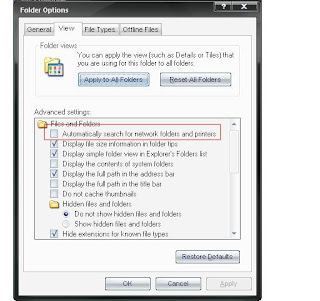
6. Click Apply and OK. Now Reboot your computer
This is because Windows XP automatically searches for network files and printers every time you open Windows Explorer.To fix this and to increase browsing speed significantly:
1. Double-click on My Computer
2. Click the "Tools" menu
3. Select Folder Options
4. Click on the View tab.
5. Uncheck the Automatically search for network folders and printers check box

6. Click Apply and OK. Now Reboot your computer
June 05, 2009
Windows XP | Windows Vista | Windows 98
This section would discuss various tips and tricks to improve the user experience and even improve the system performance. Please go through the below articles:
- How to defragment your hard drives in a jiffy?
- How to change your LOGON screen?
- How to delete a USB drive or USB device’s hardware signature?
- How to find bad memory in vista?
- How to use USB Flashdrives in Windows 98?
- How to make your XP look like vista?
- How to restrict the users of a system from using USB devices or DVDROMS?
- How to login safely even without a cursor?
- How to enable or disable the autorun or autoplay feature for CD, DVD, USB?
- How to display RUN on Start Menu in Vista?
- How to remove Shortcut arrows in Vista?
- How to change the timer and how to remove unwanted OS Start up option on Boot screen?
- How to remove the System Tray on your monitor?
- How to increase Windows Startup speed?
- How to optimize display settings for best performance and excellent display?
- How to speed up the Offline browsing speed in your computer?
- How to remove unused programs and files?
- How to disable file Indexing and improve PC Speed?
- How to enable DMA and increase PC Speed?
- How to run disk clean up and improve PC Speed?
- How to reduce Page file size and improve PC Speed?
- How to speedup file browsing in your system?
- How to optimize your display settings for best performance and not losing visually?
- How to clean your temporary Internet files from IE6?
- How to rename your disk drives in My Computer?
- How to start the system console in a required size immediately?
- How to delete the restore points and shadow copies in windows 7?