


June 29, 2009


Browsers - Download
Guys - I am gonna tell you some of the very best and widely used browsers. I will be just giving you some bried Info on them as this section is exclusively for Downloads and that too freewares means price is ZERO!!!
Refer the Downloads Section related to internet -
Download Firefox
Firefox is a fantastic browser. One word I can say is that this simply outperforms IE in every aspect. I recommend this to everyone. With additional add-ons, the Mozilla is a Powerhouse. You may want to check on the 10 Must-Have Add-ons in firefox. Many people prefer mozilla simply because its fast,offers wide variety of features which even many dont know! If you use Internet for more than E-Mail, Firefox is the answer!!!
Download Opera
Opera is my favourite browser. It was the master for the Multiple Tab Functionality which firefox and chrome followed. Moving your mouse over any tab shows a thumbnail of the current content. This was also an add-on which firefox implemented. Opera’s trash can lets you reload accidentally closed Web pages quickly without having to consult the history file. The Download Manager in Opera is very powerful. I mean - Your download started, gets interrupted, but yet you can resume many unless your connection is weak. Opera is also pretty good in speed. In my View, Firefox and Opera are two must have browsers for any Internet user!!!
Refer the Downloads Section related to internet -
Download Firefox
Firefox is a fantastic browser. One word I can say is that this simply outperforms IE in every aspect. I recommend this to everyone. With additional add-ons, the Mozilla is a Powerhouse. You may want to check on the 10 Must-Have Add-ons in firefox. Many people prefer mozilla simply because its fast,offers wide variety of features which even many dont know! If you use Internet for more than E-Mail, Firefox is the answer!!!
Download Opera
Opera is my favourite browser. It was the master for the Multiple Tab Functionality which firefox and chrome followed. Moving your mouse over any tab shows a thumbnail of the current content. This was also an add-on which firefox implemented. Opera’s trash can lets you reload accidentally closed Web pages quickly without having to consult the history file. The Download Manager in Opera is very powerful. I mean - Your download started, gets interrupted, but yet you can resume many unless your connection is weak. Opera is also pretty good in speed. In my View, Firefox and Opera are two must have browsers for any Internet user!!!
INTERNET
SYSTEM
MULTIMEDIA
ESSENTIALS
SYSTEM
MULTIMEDIA
ESSENTIALS
The Page is still under construction. Please bare this for some time and I will get on a high for you folks!!! Request your patience in this and please check back soon.
Flash Player 10 on Mobiles!!!!
FlashLight 3.1 has only barely been released, and Adobe already on to the next step, running full featured flash on mobiles.Soon enough, you can expect your phone running Windows Mobile, Google's Android, Nokia S60/Symbian, or the Palm operating systems to be capable of running Flash 10 in all it's glory with a the release of the Flash Player 10 for smartphones. See something missing?
The iPhone is still off the menu. With the rate at which smartphones are getting faster and more powerful it was only a matter of time, that FlashLite and Flash would reach a common ground. Instead of propelling the confusion of different flash version profiles, with compatibility constraints, Adobe has put considerable effort into bringing the full version of the flash player to mobiles. This will certainly make the flash platform even more appealing as developers and designers will be able to reuse the work they put in to the desktop flash projects directly to mobile.
Nearly every mobile phone today supports some version of FlashLite, giving flash an even wider audience than the Internet. Till now flash content for mobiles has been more of small widgets or active active wallpapers and screen savers, but with a full featured flash player, we are sure to see a growing no of application in flash 10 for the mobile.
Flash Player 10 for mobile is expected early next year.
Ref: Digit
The iPhone is still off the menu. With the rate at which smartphones are getting faster and more powerful it was only a matter of time, that FlashLite and Flash would reach a common ground. Instead of propelling the confusion of different flash version profiles, with compatibility constraints, Adobe has put considerable effort into bringing the full version of the flash player to mobiles. This will certainly make the flash platform even more appealing as developers and designers will be able to reuse the work they put in to the desktop flash projects directly to mobile.
Nearly every mobile phone today supports some version of FlashLite, giving flash an even wider audience than the Internet. Till now flash content for mobiles has been more of small widgets or active active wallpapers and screen savers, but with a full featured flash player, we are sure to see a growing no of application in flash 10 for the mobile.
Flash Player 10 for mobile is expected early next year.
Ref: Digit
NOKIA - INTEL Collaboration!!!
Fellows - This is an interesting tech news that I have come across!!! Check it out and have an idea of the future!
Nokia and Intel recently announced a "long-term relationship" of mutual benefit which in the least stands to bring in a new wave of ultra-portable, mobile enabled, internet capable devices.
While Nokia had shown interest in the netbook arena some time ago, this "relationship" stands for much more, as in Intel's own terms, they plan to "develop a new class of
Intel® Architecture-based mobile computing device and chipset architectures which will combine the performance of powerful computers with high-bandwidth mobile broadband communications and ubiquitous Internet connectivity".
With a partnership like this the sky is the limit...Perhaps Intel's Moorestown devices could be the child of this relationship! Intel already has Atom, which is rather successful in some of the most compact computers available today and Intel's code-name Lincroft chipset is suggestive of even smaller devices with lower power requirements.
Mobile phones even today offer nothing close to the experience we get from a "proper" computer. Even the lowliest of Netbooks today can challenge perhaps the best of mobile phones, with an operating system like windows or Linux, you can get much further than what you possibly could in a mobile device. With this coming fusion though, we might as well see something which lie in between. Mobile phones, MIDs, or even portable media devices which offer close to as much power as an full computer.
This unison transcends even the bonds of hardware, as Nokia and Intel have plans for collaboration around the open source spheres of Linux. The Intel supported Moblin platform which is optimized for use in ultra mobile computers with the Atom processor and Nokia's Maemo platform which runs its N810 Internet tablet are both based on Linux and they plan to foster better compatibility between these platforms for an even better mobile experience.
As said by Anand Chandrasekher, Intel Corporation senior vice president and general manager, Ultra Mobility Group, "This Intel and Nokia collaboration unites and focuses many of the brightest computing and communications minds in the world, and will ultimately deliver open and standards-based technologies, which history shows drive rapid innovation, adoption and consumer choice. With the convergence of the Internet and mobility as the team's only barrier, I can only imagine the innovation that will come out of our unique relationship with Nokia. The possibilities are endless."
Intel and Nokia have both showcased their rather bold visions of the future of portable devices!!!
Nokia and Intel recently announced a "long-term relationship" of mutual benefit which in the least stands to bring in a new wave of ultra-portable, mobile enabled, internet capable devices.
While Nokia had shown interest in the netbook arena some time ago, this "relationship" stands for much more, as in Intel's own terms, they plan to "develop a new class of
Intel® Architecture-based mobile computing device and chipset architectures which will combine the performance of powerful computers with high-bandwidth mobile broadband communications and ubiquitous Internet connectivity".
With a partnership like this the sky is the limit...Perhaps Intel's Moorestown devices could be the child of this relationship! Intel already has Atom, which is rather successful in some of the most compact computers available today and Intel's code-name Lincroft chipset is suggestive of even smaller devices with lower power requirements.
Mobile phones even today offer nothing close to the experience we get from a "proper" computer. Even the lowliest of Netbooks today can challenge perhaps the best of mobile phones, with an operating system like windows or Linux, you can get much further than what you possibly could in a mobile device. With this coming fusion though, we might as well see something which lie in between. Mobile phones, MIDs, or even portable media devices which offer close to as much power as an full computer.
This unison transcends even the bonds of hardware, as Nokia and Intel have plans for collaboration around the open source spheres of Linux. The Intel supported Moblin platform which is optimized for use in ultra mobile computers with the Atom processor and Nokia's Maemo platform which runs its N810 Internet tablet are both based on Linux and they plan to foster better compatibility between these platforms for an even better mobile experience.
As said by Anand Chandrasekher, Intel Corporation senior vice president and general manager, Ultra Mobility Group, "This Intel and Nokia collaboration unites and focuses many of the brightest computing and communications minds in the world, and will ultimately deliver open and standards-based technologies, which history shows drive rapid innovation, adoption and consumer choice. With the convergence of the Internet and mobility as the team's only barrier, I can only imagine the innovation that will come out of our unique relationship with Nokia. The possibilities are endless."
Intel and Nokia have both showcased their rather bold visions of the future of portable devices!!!
Microsoft Windows 7 Cost and Price !!!
Microsoft has announced the pricing for it's upcoming Windows 7 Operating System, due for release on October 22nd, and it has an attractive offer for those opting to upgrade right away.
Early upgraders may be able to get a Windows 7 upgrade for as little as
$49.99 in lieu of $119.99 for Windows 7 Home Premium, and $99.99 in lieu of $199.99 for those upgrading to Windows 7 Professional. The Windows 7 Ultimate adopters currently see no benefit from this scheme.
This offer is set to run for a limited amount of time or more accurately, based on the number of units sold. Microsoft plans to have this offer available only for a limited number of units, which it claims is quite a generous amount.
Windows 7 SKU Home Premium
Full retail price - 199.99
"Special" Upgrade Price - 49.99
Standard Upgrade Price - 119.99
Windows 7 SKU Professional
Full retail price - 299.99
"Special" Upgrade Price - 99.99
Standard Upgrade Price - 199.99
Windows 7 SKU Ultimate
Full retail price - 319.99
"Special" Upgrade Price - 219.99
Standard Upgrade Price - 219.99
Early upgraders may be able to get a Windows 7 upgrade for as little as
$49.99 in lieu of $119.99 for Windows 7 Home Premium, and $99.99 in lieu of $199.99 for those upgrading to Windows 7 Professional. The Windows 7 Ultimate adopters currently see no benefit from this scheme.
This offer is set to run for a limited amount of time or more accurately, based on the number of units sold. Microsoft plans to have this offer available only for a limited number of units, which it claims is quite a generous amount.
Windows 7 SKU Home Premium
Full retail price - 199.99
"Special" Upgrade Price - 49.99
Standard Upgrade Price - 119.99
Windows 7 SKU Professional
Full retail price - 299.99
"Special" Upgrade Price - 99.99
Standard Upgrade Price - 199.99
Windows 7 SKU Ultimate
Full retail price - 319.99
"Special" Upgrade Price - 219.99
Standard Upgrade Price - 219.99
June 27, 2009
How to resize your partitions of the hard drive?
First thing - Take a backup of all the important data on CDs/DVD or any other external storage device. Your Data is important rgt?? Hmm...Now if you still didnt get the requirement here, Let me give an example. You have a drive 'E'. Say you have assigned 20 GB and now its getting rapidly filled up. Now you need more space!!! hmm...How can you do it? You have two options...
One is to remove all the partitions and create new partitions of your desired size.But this would completely remove or erase all your existing data from the hard drive.
The Second option is to use a third party partition management tool to resize the partitions of your hard drive. There are various tools available for the same. I am not going to explain on how to do it using a third party tools. I would just suggest some of the best ones.
Freewares - You need to do a lot of study for these and only then you can be live!

The Partition Magic is a very well known, trusted and powerful. But anything like this isn't free!!! It costs around 70$ but would be worth it instead of playing around with your valuable data. Check the Manual for the detailed steps and you can do it finally. Whatever tool you use, backup all your data first and most important - Ensure you donot lose power during the process. (Have a UPS and still any problem - Get an Inverter Power for your System!)
One is to remove all the partitions and create new partitions of your desired size.But this would completely remove or erase all your existing data from the hard drive.
The Second option is to use a third party partition management tool to resize the partitions of your hard drive. There are various tools available for the same. I am not going to explain on how to do it using a third party tools. I would just suggest some of the best ones.
Freewares - You need to do a lot of study for these and only then you can be live!
- Partition Logic
- EASEUS Partition Manager Home Edition (I am in office now and websense is blocking me to provide you an exact link for each of these. Do yourself a favor by googling this!)

The Partition Magic is a very well known, trusted and powerful. But anything like this isn't free!!! It costs around 70$ but would be worth it instead of playing around with your valuable data. Check the Manual for the detailed steps and you can do it finally. Whatever tool you use, backup all your data first and most important - Ensure you donot lose power during the process. (Have a UPS and still any problem - Get an Inverter Power for your System!)
USB 3.0 SuperSpeed!!!
We have discussed articles on how to use flashdrives in 98 and how to delete USB drive or USB hardware signature . Now check the below one which makes you smile!!!There needs to be no introduction on the USB 2.0. For years now, it has been the best and convenient way to connect peripherals to our computers.Its like we cant lead a life without the USB Storage devices and others.
USB Types:

These were quite sufficient till date with a max bitrate of 480 Mb/s.
Simple Flash drives - USB Storage Devices


But now at the age of HD Videos and terabyte harddisks, a new USB Successor is a MUST!!!In September 2007, Intel announced it was beginning to define the specifications of USB 3.0 and now at last, the successor is ready. Jan 2009 was the first time, as USB 3.0 device was demonstrated in public. The technology is proven to be ready and is working!!!
Most prominent feature is USB 3.0 is a 10x increase in the potential Data transfer rate i.e., approx 640 MB per sec of data can flow through a cable as compared to 480 Mb/s in USB 2.0. This also means you can copy 25 GB in not more than 60 Sec!!! Most Important thing and best appealing feature is
USB 3.0 is completely backwards compatible!!! This means that all current USB Devices still remain fully functional. Additional features include the data routing and the power saving modes.
USB Supported devices

For USB 3.0, in addition to the normal speed levels, a "SuperSpeed" level is introduced. This is what enables the transfer rate of upto 5Gb/s. The "SuperSpeed" mode operates with the help of 5 additional pins in the connector.


There is also a complex cable structure incorporated for this and the advantage is the support for full-duplex data transfer i.e., it can flow in both directions without reducing speed in any case. keep this in Mind - USB 3.0 Connectors should be BLUE in color to distinguish them from USB 2.0 connectors.

However, it looks externally pretty much the same.
Types of USB 3.0:

The USB 3.0 Type A Connector in the above looks the same and is completely backwards compatible.The type B Connector used for printers and hard drives, has a protusion at the top for new pins of SuperSpeed. The Micro USB Connector designed for digi cams or mobiles is however not compatible with existing setup and need an "Extension" to house them.
Bottomline:
===========
Users will not face any issues with USB 3.0 as its completely backwards compatible.
Peripherals will be able to run faster, especially hard drives.
New features like increased power draw and robust design.
Availability:- Probably in the early 2010!!!
pan>
USB Types:

These were quite sufficient till date with a max bitrate of 480 Mb/s.
Simple Flash drives - USB Storage Devices


But now at the age of HD Videos and terabyte harddisks, a new USB Successor is a MUST!!!In September 2007, Intel announced it was beginning to define the specifications of USB 3.0 and now at last, the successor is ready. Jan 2009 was the first time, as USB 3.0 device was demonstrated in public. The technology is proven to be ready and is working!!!
Most prominent feature is USB 3.0 is a 10x increase in the potential Data transfer rate i.e., approx 640 MB per sec of data can flow through a cable as compared to 480 Mb/s in USB 2.0. This also means you can copy 25 GB in not more than 60 Sec!!! Most Important thing and best appealing feature is
USB 3.0 is completely backwards compatible!!! This means that all current USB Devices still remain fully functional. Additional features include the data routing and the power saving modes.
USB Supported devices

For USB 3.0, in addition to the normal speed levels, a "SuperSpeed" level is introduced. This is what enables the transfer rate of upto 5Gb/s. The "SuperSpeed" mode operates with the help of 5 additional pins in the connector.


There is also a complex cable structure incorporated for this and the advantage is the support for full-duplex data transfer i.e., it can flow in both directions without reducing speed in any case. keep this in Mind - USB 3.0 Connectors should be BLUE in color to distinguish them from USB 2.0 connectors.

However, it looks externally pretty much the same.
Types of USB 3.0:

The USB 3.0 Type A Connector in the above looks the same and is completely backwards compatible.The type B Connector used for printers and hard drives, has a protusion at the top for new pins of SuperSpeed. The Micro USB Connector designed for digi cams or mobiles is however not compatible with existing setup and need an "Extension" to house them.
Bottomline:
===========
Users will not face any issues with USB 3.0 as its completely backwards compatible.
Peripherals will be able to run faster, especially hard drives.
New features like increased power draw and robust design.
Availability:- Probably in the early 2010!!!
pan>
AMD is ready with ATHLON II...
AMD is busy gearing up with new line of low cost 45 nm processors dubbed as "ATHLON II" which we say "ATHLON 2". This one coexists with the current PHENOM II line and would also be available in dual,triple and quad-core versions with probably reduced or no L3 caches.
New PHENOM II chips are also to be out in the next few months and would include several low power models. Now for the rival news - Intel is readying its new Mainstream Core i7 derivatives for desktops which means - Core 2 Duo prices might drop!!! Watch out fellows and this might be little difficult for AMD as well!!!
New PHENOM II chips are also to be out in the next few months and would include several low power models. Now for the rival news - Intel is readying its new Mainstream Core i7 derivatives for desktops which means - Core 2 Duo prices might drop!!! Watch out fellows and this might be little difficult for AMD as well!!!
June 23, 2009
How to rename your Disk drives?
Fellows - This is pretty basic. But since my blog is going to be transparent from beginner to geek, I would like to cover pretty basic fundamentals as well. So Geeks, you can get a coffee meanwhile!!!
Now for the readers - Have you ever wondered, if you dont know, that you can exactly change the names of the Disk Drives like C,D etc., to your names? Its pretty simple as well. If you are not sure, then herez how to do it...
1. Double click on the My Computer icon on your Desktop until it opens.
2. Then gently click on the drive you want to name just enough until it becomes highlighted.
3. Then right click on the selected drive, and click Rename OR you can simply highlight the drive and click F2 key to enter the new name which is max 32 characters
Note: If the drive already contains a name simply over type a new name in the box
4. Then click on the white space anywhere with a left click
Note: This will work for Windows XP or any new OS later.I didnt provide for Windows 98 as very minimal amount of people use it.
Now for the readers - Have you ever wondered, if you dont know, that you can exactly change the names of the Disk Drives like C,D etc., to your names? Its pretty simple as well. If you are not sure, then herez how to do it...
1. Double click on the My Computer icon on your Desktop until it opens.
2. Then gently click on the drive you want to name just enough until it becomes highlighted.
3. Then right click on the selected drive, and click Rename OR you can simply highlight the drive and click F2 key to enter the new name which is max 32 characters
Note: If the drive already contains a name simply over type a new name in the box
4. Then click on the white space anywhere with a left click
Note: This will work for Windows XP or any new OS later.I didnt provide for Windows 98 as very minimal amount of people use it.
How to clean your Temporary System Files of IE6 or above?
Whenever you visit a web site or anything online, records of sites are stored in various directories on your computer or Lappy. This just functions as a cache and is helpful for the page to load faster if you bounce back to that particular site. But these temporary files can cause problems if they accumulate over a long period of time. Hence you need to delete temporary files so as to improve your system performance.This article tells you how to delete the temporary internet files.
level: Beginner and basic
1. For best results, close all your open programs until the Windows Desktop appears.
Open up the Internet Explorer browser in the manner that you usually do.Then you click on the word Tools, which is contained in your top tool bar area.There will be a dropdown menu coming up.
2. Then locate the three buttons entitled: Delete Cookies, Delete Files and Clear History.
3. Now click on each button and select OK each time Windows asks if you want to delete these files.Then click on the OK button at the bottom of the screen to exit the Internet Properties window.
The above will work for all earlier Windows versions as long Internet Explorer 6.0 or higher is installed on that system. This is because Internet Explorer 6.0 now includes the new Delete Cookies button and a new Delete Files button that does a decent job of wiping out Temporary Internet Files.
Note:- I will come up with a separate article on cleaning up private data for various browsers. Watch this space for more as this is very basic for a minimal audience!!!
level: Beginner and basic
1. For best results, close all your open programs until the Windows Desktop appears.
Open up the Internet Explorer browser in the manner that you usually do.Then you click on the word Tools, which is contained in your top tool bar area.There will be a dropdown menu coming up.
2. Then locate the three buttons entitled: Delete Cookies, Delete Files and Clear History.
3. Now click on each button and select OK each time Windows asks if you want to delete these files.Then click on the OK button at the bottom of the screen to exit the Internet Properties window.
The above will work for all earlier Windows versions as long Internet Explorer 6.0 or higher is installed on that system. This is because Internet Explorer 6.0 now includes the new Delete Cookies button and a new Delete Files button that does a decent job of wiping out Temporary Internet Files.
Note:- I will come up with a separate article on cleaning up private data for various browsers. Watch this space for more as this is very basic for a minimal audience!!!
Two more Dimensions to Digital Storage!!!
Now this is a milestone fellows!!! This was what I was waiting for...finally read this article through a thumbs up!!! Thght you must know...Check it out!!!
Can you see 5 dimensions? Can you even imagine what they could be like? Well some people still manage to think 5D. At the Centre for Micro-Photonics at the Swinburne University of Technology in Victoria, Australia reasearch led by its director Min Gu has lead to the development of a new material on which data can be stored in 5 dimensions.
Five dimensions
may seem absurd, but dimensions here represent how many parameter are used in locating the data. in Today we have CDs, DVDs, and Blu-Ray discs which store data in two dimension (or 3). In CDs the data is stored in a spiral, with the two dimensions being those of the surface of recording. With DVDs and Blu-Rays there is the additional concept of layers, which add another dimension to data storage, but not by much. Holographic discs, which are still under development store data in 3 dimensions by having hundreds or thousands of layers instead of just 2 or 4.
The new material can be used to store data 5 dimensionally, using the three spatial dimensions (the 2D surface, and the layers), with the two additional dimensions being the polarization of the laser used to store data and its wavelength. Needless to say this can have a huge impact on how much data we can cram into the discs of tomorrow.In their studies they used 3 different wavelengths and two different polarizations to achieve a density as great as 1.1 terrabyte per square inch!
With each additional dimension the storage capacity increases greatly. Taing Blu-Ray for example, with an increase in layers, the storage is increased to twice its size (50GB) using two layers, or quadrupled by using 4 layers (100GB). If now the parameter of wavelength is introduced, then by using just 3 different wavelengths as done in their study, the storage capacity of a quad-layer BluRay becomes 300GB. With the added parameter of polarization, with two possible polarizations, we can double the capacity to 600GB, for our quad-layer, triple-wavelength, dual-polarization disk.
This material is made up of "layers of gold nanorods suspended in clear plastic spun flat on a glass substrate". According to Min Gu. "You can record each bit by one laser pulse, The writing laser melts and reshapes the gold particles, which are less than 100 nanometers long. The changes affect how the nanorods interact with light from a laser-imaging system, allowing the data to be read."
And now we are trading in Blu-RAYS!!!
Can you see 5 dimensions? Can you even imagine what they could be like? Well some people still manage to think 5D. At the Centre for Micro-Photonics at the Swinburne University of Technology in Victoria, Australia reasearch led by its director Min Gu has lead to the development of a new material on which data can be stored in 5 dimensions.
Five dimensions
may seem absurd, but dimensions here represent how many parameter are used in locating the data. in Today we have CDs, DVDs, and Blu-Ray discs which store data in two dimension (or 3). In CDs the data is stored in a spiral, with the two dimensions being those of the surface of recording. With DVDs and Blu-Rays there is the additional concept of layers, which add another dimension to data storage, but not by much. Holographic discs, which are still under development store data in 3 dimensions by having hundreds or thousands of layers instead of just 2 or 4.
The new material can be used to store data 5 dimensionally, using the three spatial dimensions (the 2D surface, and the layers), with the two additional dimensions being the polarization of the laser used to store data and its wavelength. Needless to say this can have a huge impact on how much data we can cram into the discs of tomorrow.In their studies they used 3 different wavelengths and two different polarizations to achieve a density as great as 1.1 terrabyte per square inch!
With each additional dimension the storage capacity increases greatly. Taing Blu-Ray for example, with an increase in layers, the storage is increased to twice its size (50GB) using two layers, or quadrupled by using 4 layers (100GB). If now the parameter of wavelength is introduced, then by using just 3 different wavelengths as done in their study, the storage capacity of a quad-layer BluRay becomes 300GB. With the added parameter of polarization, with two possible polarizations, we can double the capacity to 600GB, for our quad-layer, triple-wavelength, dual-polarization disk.
This material is made up of "layers of gold nanorods suspended in clear plastic spun flat on a glass substrate". According to Min Gu. "You can record each bit by one laser pulse, The writing laser melts and reshapes the gold particles, which are less than 100 nanometers long. The changes affect how the nanorods interact with light from a laser-imaging system, allowing the data to be read."
And now we are trading in Blu-RAYS!!!
Microsoft's Project Natal!!!
The battle between the Microsoft Xbox 360 and the Sony Playstation 3 began long before they came out. With people comparing specs, availability of games, features, even which has a cooler name, so it came as a surprise to most people, Wii won, without ever competing. None of it seemed to matter in front of the Nintendo Wii's revolution in gaming.
Microsoft is trying to grab a piece of its pie again, with project Natal. It is their take on the new interface of interactivity introduced by Nintendo. Except with Project Natal you dont even need to hold controllers in your hand, it manages it all with a simple camera!
This is truly a testament to what cameras can accomplish today. A great amount of detail needs to be captured so that body movements can be discerned even at a distance. Even besides that processing an image and understanding each the context of each object. Thus with Project Natal you can jump right into the game without needing any controller, instead the camera captures your body motions and uses it to control your avatar in the game.
This brings in a much deeper level of involvement than even Nintendo Wii, since instead of the contoller you have all the dimensions provided by your body, infact your body itself is like a wireless controller.
Ref: Digit News
Microsoft is trying to grab a piece of its pie again, with project Natal. It is their take on the new interface of interactivity introduced by Nintendo. Except with Project Natal you dont even need to hold controllers in your hand, it manages it all with a simple camera!
This is truly a testament to what cameras can accomplish today. A great amount of detail needs to be captured so that body movements can be discerned even at a distance. Even besides that processing an image and understanding each the context of each object. Thus with Project Natal you can jump right into the game without needing any controller, instead the camera captures your body motions and uses it to control your avatar in the game.
This brings in a much deeper level of involvement than even Nintendo Wii, since instead of the contoller you have all the dimensions provided by your body, infact your body itself is like a wireless controller.
Ref: Digit News
June 22, 2009
Microsoft takes on Google!!!
With the next revolution of the internet with Web 3.0 already dubbed as the “Semantic Web”. Google has been in the search field longer, and has much more data about people and their search patterns, so going semantic might not be as big a step for them. However if Microsoft has found the gaps present in the search engines of today and aims to create a search engine that fills all these gaps, they need to make sure not to introduce any gaps of their own.
The purse strings are loosening, and it appears as much as $80 to $100 million is likely to fall out, as Microsoft decides to boldly enter what is clearly Google's domain; Search. They intend to create a new search engine which they believe will show people what they've always been missing in search results. Although casual observer might ask “based on what experience”?
Search engines are the center of most people interaction with the web nowadays. For most, interaction with the Internet begins with the Google prompt, for many Google is synonymous for search. It is this giant that Microsoft aims not only reach parity with but also overtake. Is this even possible?
Google is a perfect example of a product that has sold itself, with people's attraction to it being more as result of it's usefulness than as a result of advertisement bombarded at them from all possible angles. With Microsoft's over $80 million advertisement budget for this venture, it wont be much of a problem for them to get people there, and with a name like “Bing” a few (including me) are sure to turn up just for the laughs. With Microsoft's hammer of money almost every nail becomes malleable. The question left to answer is how many people with stick.
Microsoft's is basing this search engine on data that people quite often don't refine search results enough, requiring multiple rounds of going back and forth with the search terms before getting the desired results. From what little information there is about “Bing” it seems to be a semantic search engine, with results that are sensitive to the context of the search terms stemming probably from their purchase of Powerset, which too was a semantic search engine.
Ref: Digit
The purse strings are loosening, and it appears as much as $80 to $100 million is likely to fall out, as Microsoft decides to boldly enter what is clearly Google's domain; Search. They intend to create a new search engine which they believe will show people what they've always been missing in search results. Although casual observer might ask “based on what experience”?
Search engines are the center of most people interaction with the web nowadays. For most, interaction with the Internet begins with the Google prompt, for many Google is synonymous for search. It is this giant that Microsoft aims not only reach parity with but also overtake. Is this even possible?
Google is a perfect example of a product that has sold itself, with people's attraction to it being more as result of it's usefulness than as a result of advertisement bombarded at them from all possible angles. With Microsoft's over $80 million advertisement budget for this venture, it wont be much of a problem for them to get people there, and with a name like “Bing” a few (including me) are sure to turn up just for the laughs. With Microsoft's hammer of money almost every nail becomes malleable. The question left to answer is how many people with stick.
Microsoft's is basing this search engine on data that people quite often don't refine search results enough, requiring multiple rounds of going back and forth with the search terms before getting the desired results. From what little information there is about “Bing” it seems to be a semantic search engine, with results that are sensitive to the context of the search terms stemming probably from their purchase of Powerset, which too was a semantic search engine.
Ref: Digit
June 13, 2009
Noise from the System Cabinet - What to do?
At some point of time - You might have a little bad news.
One fine day, you might hear lot of noise from within the system cabinet. You might wonder if it is the noise of hard drive,SMPS or the Internal fans. SO here is what i suggest. The CPU or SMPS need to be serviced or changed. Its just that they might have become dirty/dusty or the oil/grease from the fan motor might have dried out! Sometimes, the shaft of the fan has a mis-alignment and thus caused the fan blades to vibrate which inturn creates a lot of sound.
So Remove the fans, clean them thoroughly and also apply a drop of oil to each one for smoothness. Special Option? I suggest you to go and buy new ones :) Doesnt cost real much!!!
Most Imp - Keep your Baby(PC) clean and green anytime Internal or external !!!
One fine day, you might hear lot of noise from within the system cabinet. You might wonder if it is the noise of hard drive,SMPS or the Internal fans. SO here is what i suggest. The CPU or SMPS need to be serviced or changed. Its just that they might have become dirty/dusty or the oil/grease from the fan motor might have dried out! Sometimes, the shaft of the fan has a mis-alignment and thus caused the fan blades to vibrate which inturn creates a lot of sound.
So Remove the fans, clean them thoroughly and also apply a drop of oil to each one for smoothness. Special Option? I suggest you to go and buy new ones :) Doesnt cost real much!!!
Most Imp - Keep your Baby(PC) clean and green anytime Internal or external !!!
_INS0432._MP - Entry Point Not Found - Unusual Error
This is not related to startup or shutdown. But I have read this in a PC Errors article where in I found it as a very tough one to crack! Accordingly, this was found out of the Microsoft Knowledge base. If you have seen, the full error would be:
_INS0432._MP - Entry Point Not Found - The procedure entry point SUnMapLS_IP_EBP_16 could not be located in the dynamic link library KERNEL32.dll
Looks scary...isnt it? I guess it should be even for the PC Geeks! Usually this message occurs when you install Laplink Software’s Laplink or PCSync software.Laplink recommends various possible remedies for this issue, including updating your video drivers to the latest version, removing temporary files from your computer and attempting the installation again, downloading and installing the latest Microsoft Java Virtual Machine, and finally, ensuring that all the latest patches and service packs are installed. SO check it out and hope this was helpful!
_INS0432._MP - Entry Point Not Found - The procedure entry point SUnMapLS_IP_EBP_16 could not be located in the dynamic link library KERNEL32.dll
Looks scary...isnt it? I guess it should be even for the PC Geeks! Usually this message occurs when you install Laplink Software’s Laplink or PCSync software.Laplink recommends various possible remedies for this issue, including updating your video drivers to the latest version, removing temporary files from your computer and attempting the installation again, downloading and installing the latest Microsoft Java Virtual Machine, and finally, ensuring that all the latest patches and service packs are installed. SO check it out and hope this was helpful!
Bluescreen,Sudden restart,No Message - Error
I have also faced this bluescreen and then sudden restart! I checked many articles and I was able to troubleshoot the problem. Since the fix might not be the same for every issue, What I can do is to help you read the error message. You can do the troubleshooting later.
The reason Windows is quickly restarting when the error occurs, without giving you enough time to see the error message, is that the system is configured to automatically restart when a system error occurs. When a STOP error occurs, Windows restarts so rapidly you have no time to look at the message. This behavior is quite disconcerting because you can’t get the error message information you desperately need to troubleshoot the problem.
Before any troubleshooting effort can begin, you need to configure WinXP so it won’t automatically restart when the error occurs.
1.Right-click My Computer, click Properties, and click the Advanced tab.
2.Click the Settings button in the Startup and Recovery option groups and click the
Automatically Restart checkbox in the System Failure option group to clear it.
3.Click OK to accept your changes.
WinXP now displays the error message, and you can troubleshoot the problem :)
The reason Windows is quickly restarting when the error occurs, without giving you enough time to see the error message, is that the system is configured to automatically restart when a system error occurs. When a STOP error occurs, Windows restarts so rapidly you have no time to look at the message. This behavior is quite disconcerting because you can’t get the error message information you desperately need to troubleshoot the problem.
Before any troubleshooting effort can begin, you need to configure WinXP so it won’t automatically restart when the error occurs.
1.Right-click My Computer, click Properties, and click the Advanced tab.
2.Click the Settings button in the Startup and Recovery option groups and click the
Automatically Restart checkbox in the System Failure option group to clear it.
3.Click OK to accept your changes.
WinXP now displays the error message, and you can troubleshoot the problem :)
Saving your Settings - Error
This one occurs as WinXP becomes nonresponsive during a shutdown.The computer hangs, and you are unable to restart it.
The root cause of this one is that a Microsoft IME (Input Method Editor) is installed and set up for use at the Welcome screen but is not functioning properly. And what is an IME? IME is a program in Windows designed to let you enter complex, foreign language characters (such as Far East languages like Korean or Chinese)
using a standard keyboard.WinXP already comes with built-in language support for Chinese, Japanese and Korean, so you don’t need to download any of the IMEs to work with one of those Far East languages in WinXP. To set up the various multilanguage
options in WinXP, double-click the Regional and Language Options icon in Control Panel.

The root cause of this one is that a Microsoft IME (Input Method Editor) is installed and set up for use at the Welcome screen but is not functioning properly. And what is an IME? IME is a program in Windows designed to let you enter complex, foreign language characters (such as Far East languages like Korean or Chinese)
using a standard keyboard.WinXP already comes with built-in language support for Chinese, Japanese and Korean, so you don’t need to download any of the IMEs to work with one of those Far East languages in WinXP. To set up the various multilanguage
options in WinXP, double-click the Regional and Language Options icon in Control Panel.

June 12, 2009
Improve PC Speed - Remove Un-Used Programs & Files
If you use your PC regularly and you experiment on various softwares, then you may have a bunch of software packages on your hard drive and some of them might be no longer needed, or they were installed by you somehow. Tool bars, file-sharing programs, free email enhancers and download managers are notorious for this practices.. These uninvited ones can affect your startup time a lot and cause webpages to load slowly, and generally slow down your computer!
1. Click Start button
2. Select Control Panel
3. Double-click Add/Remove Programs icon
4. See what programs are installed that you don’t typically use
5. Select the Remove button for the ones you know you don't need in specific!
If you’re unsure about some programs, then do not remove and if you do, do a google search so that you will know what you are doing!!!!
1. Click Start button
2. Select Control Panel
3. Double-click Add/Remove Programs icon
4. See what programs are installed that you don’t typically use
5. Select the Remove button for the ones you know you don't need in specific!
If you’re unsure about some programs, then do not remove and if you do, do a google search so that you will know what you are doing!!!!
Improve PC Speed - Disable File Indexing
Indexing Services is a small little program that uses large amounts of memory and can often make a computer endlessly loud and noisy. This system process indexes and updates lists of all the files that are on your computer. It does this so that when you do a search for something on your computer, it will search faster by scanning the index lists. If you don’t search your computer often, this system service is completely unnecessary.
To disable do the following:
1. Click Start button
2. Select the Control Panel
3. Double-click Add/Remove Programs
4. Click the Add/Remove Window Components icon on the left side of the window.This
may take a few seconds to load. Be patient.
5. Look for the "Indexing Services" component in the list
6. Uncheck the Indexing Services
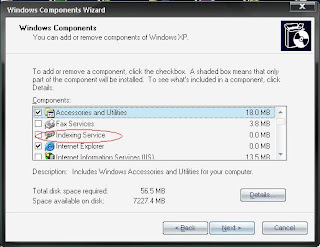
7. Click Next and then Click Finish
To disable do the following:
1. Click Start button
2. Select the Control Panel
3. Double-click Add/Remove Programs
4. Click the Add/Remove Window Components icon on the left side of the window.This
may take a few seconds to load. Be patient.
5. Look for the "Indexing Services" component in the list
6. Uncheck the Indexing Services

7. Click Next and then Click Finish
Improve PC Speed - Enable Direct Access Memory (DMA)
If you are not comfortable in understanding this inspite of below description, Please follow the steps as that would help you have a less load on CPU and which ultimately enables your system to work faster!
DMA:- Microsoft Windows includes a Bus Mastering feature known as Direct Memory Access or DMA. When this DMA feature is enabled, it basically allows your Hard Drive and CD Rom Drive to transfer their information directly to and from memory without passing through the Microprocessor.
In short, when your disk drives use Direct Memory Access to access their information, this reduces the load placed upon your Central Processor Unit (CPU) and therefore your system works faster.
Direct Memory Access (DMA) is the theoretical data access rate of a Drive measured in megabytes per second. Thus, an Ultra DMA-100 Hard Drive will theoretical access data at a rate of 100 megabytes per second and an Ultra DMA-133 Drive will theoretical access data at a rate of 133 megabytes per second. Therefore, this technical brief will show you how to enable Direct Memory Access (DMA) on your system.
Now follow the below steps to enable or Disable DMA. I have only provided for XP as for 98, you would need to enable both foe Harddrives and Optimal ones. Moreover I am concentrating on XP as 98 support has been officially stopped.
1. Right-click on My Computer, select Properties
2. Select the Hardware tab
3. Click the Device Manager button

4. Double-click IDE/ATAPI controllers
5. Double-click on the Primary IDE Channel
 6. Click on the Advanced Settings tab (as shown in figure).The tab may or may not be
available for each option. It is only available in Primary and Secondary Channels.
7. Set the Transfer Mode to "DMA if Available" both for Device 1 and 0 and Click OK
 8. Perform the same operation for other items in the list, if applicable.
DMA:- Microsoft Windows includes a Bus Mastering feature known as Direct Memory Access or DMA. When this DMA feature is enabled, it basically allows your Hard Drive and CD Rom Drive to transfer their information directly to and from memory without passing through the Microprocessor.
In short, when your disk drives use Direct Memory Access to access their information, this reduces the load placed upon your Central Processor Unit (CPU) and therefore your system works faster.
Direct Memory Access (DMA) is the theoretical data access rate of a Drive measured in megabytes per second. Thus, an Ultra DMA-100 Hard Drive will theoretical access data at a rate of 100 megabytes per second and an Ultra DMA-133 Drive will theoretical access data at a rate of 133 megabytes per second. Therefore, this technical brief will show you how to enable Direct Memory Access (DMA) on your system.
Now follow the below steps to enable or Disable DMA. I have only provided for XP as for 98, you would need to enable both foe Harddrives and Optimal ones. Moreover I am concentrating on XP as 98 support has been officially stopped.
1. Right-click on My Computer, select Properties
2. Select the Hardware tab
3. Click the Device Manager button

4. Double-click IDE/ATAPI controllers
5. Double-click on the Primary IDE Channel
 6. Click on the Advanced Settings tab (as shown in figure).The tab may or may not be
available for each option. It is only available in Primary and Secondary Channels.
7. Set the Transfer Mode to "DMA if Available" both for Device 1 and 0 and Click OK
 8. Perform the same operation for other items in the list, if applicable.
June 11, 2009
Increase PC Speed - Run Disk Clean-Up
If you use the System regularly, both Windows and application programs tend to leave temporary files lying around on your hard drive, taking up huge space. A hard drive that is close to being “full” can cause Windows to slow down or interfere with efficient disk access and virtual memory operations. This will ultimately affect your system's performance!
And moreover, if you surf the web a lot, your temporary internet files folder can become quite large, causing Internet Explorer to slow down or malfunction. Cleaning up unneeded files, scanning for disk errors and defragmenting the hard drive can help to restore some zip to your system.
Try to run once a month for peak performance. How can you do this? Here you go...
1. Double-click the My Computer icon.
2. Right-click on the C: drive (if your OS is installed on C)
3. Select Properties
4. Click the Disk Cleanup button (to the bottom-right of the Capacity pie graph)

5. Select check Temporary Internet Files and Recycle Bin

6. Click OK

And moreover, if you surf the web a lot, your temporary internet files folder can become quite large, causing Internet Explorer to slow down or malfunction. Cleaning up unneeded files, scanning for disk errors and defragmenting the hard drive can help to restore some zip to your system.
Try to run once a month for peak performance. How can you do this? Here you go...
1. Double-click the My Computer icon.
2. Right-click on the C: drive (if your OS is installed on C)
3. Select Properties
4. Click the Disk Cleanup button (to the bottom-right of the Capacity pie graph)

5. Select check Temporary Internet Files and Recycle Bin

6. Click OK

Increase Computer Speed - Reduce Page File Size
Firstly Lets know - What is a Page File?
In storage
2. Click the Advanced tab
3. Click the Settings button under the Performance section
4. Click the Advanced tab
5. Under the Virtual Memory section click the Change button
6. "Virtual Memory" dialogue box will appear (also shown in the 3 figures below)

7. Highlight the C: drive containing page file
8. Select the Custom Size radio button and give same values in Initial size and
Maximum size fields: -
If you have less than 512MB of memory, leave the page file at its default size. If you have 512MB or more, change the ratio to 1:1 page file size to physical memory size (If you have 2 gb RAM, give it as mine).
9. Click Set, then OK buttons to apply the changes. Hope this will have good effect though not immediately visible.
In storage
In other OSs', the pagefile is called a Swap File or a swap partition. Page file size is not constant by default. Due to this, the operating system has to resize the file each time more space is required. This is a performance overhead. But you can optimize it to an ideal size so as to improve the system performance. All you have to do is to set the file size to a reasonable limit.Follow the below steps:-
1. Right-click My Computer, Select Properties2. Click the Advanced tab
3. Click the Settings button under the Performance section
4. Click the Advanced tab
5. Under the Virtual Memory section click the Change button
6. "Virtual Memory" dialogue box will appear (also shown in the 3 figures below)

7. Highlight the C: drive containing page file
8. Select the Custom Size radio button and give same values in Initial size and
Maximum size fields: -
If you have less than 512MB of memory, leave the page file at its default size. If you have 512MB or more, change the ratio to 1:1 page file size to physical memory size (If you have 2 gb RAM, give it as mine).
9. Click Set, then OK buttons to apply the changes. Hope this will have good effect though not immediately visible.
Increase your PC Speed - Speed up File-Browsing
You may have noticed that every time you open "My Computer" to browse folders that there is a slight delay everytime. As time goes by, this would be even more delayed which is when we find that our baby is growing old!
This is because Windows XP automatically searches for network files and printers every time you open Windows Explorer.To fix this and to increase browsing speed significantly:
1. Double-click on My Computer
2. Click the "Tools" menu
3. Select Folder Options
4. Click on the View tab.
5. Uncheck the Automatically search for network folders and printers check box
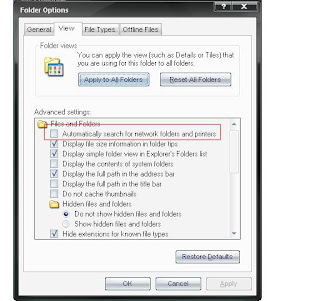
6. Click Apply and OK. Now Reboot your computer
This is because Windows XP automatically searches for network files and printers every time you open Windows Explorer.To fix this and to increase browsing speed significantly:
1. Double-click on My Computer
2. Click the "Tools" menu
3. Select Folder Options
4. Click on the View tab.
5. Uncheck the Automatically search for network folders and printers check box

6. Click Apply and OK. Now Reboot your computer
Increase PC Speed - Optimize Display Settings
If you are an user of XP - The look of these will be real sexy with all the visual items being displayed. But displaying all the visual items can really waste your system resources.So heres how you optimize: -
If you have Classic view Of Control Panel- Follow below:
1. Click the Start button
2. Select Control Panel
3. Double-click the "System" icon
4. Click the Advanced tab
5. In the Performance box click "Settings". It looks as below:

6. Now, the below screen appeard once you have clicked "settings"

Leave only the following ticked in the below screen:
a. Show shadows under menus
b. Show shadows under mouse pointer
c. Show translucent selection rectangle
d. Use drop shadows for icons labels on the desktop
e. Use visual styles on windows and buttons
7. Finally, click Apply and OK
------------------------------------------------------------------------------------------------
If you have Category view Of Control Panel- Follow below:
1. Click the Start button
2. Select Control Panel
3. Click "Performance and Maintenance" and click "Adjust Visual Effects"

4. Leave only the following ticked in the above screen
a. Show shadows under menus
b. Show shadows under mouse pointer
c. Show translucent selection rectangle
d. Use drop shadows for icons labels on the desktop
e. Use visual styles on windows and buttons
5. Finally, click Apply and OK
If you have Classic view Of Control Panel- Follow below:
1. Click the Start button
2. Select Control Panel
3. Double-click the "System" icon
4. Click the Advanced tab
5. In the Performance box click "Settings". It looks as below:

6. Now, the below screen appeard once you have clicked "settings"

Leave only the following ticked in the below screen:
a. Show shadows under menus
b. Show shadows under mouse pointer
c. Show translucent selection rectangle
d. Use drop shadows for icons labels on the desktop
e. Use visual styles on windows and buttons
7. Finally, click Apply and OK
------------------------------------------------------------------------------------------------
If you have Category view Of Control Panel- Follow below:
1. Click the Start button
2. Select Control Panel
3. Click "Performance and Maintenance" and click "Adjust Visual Effects"

4. Leave only the following ticked in the above screen
a. Show shadows under menus
b. Show shadows under mouse pointer
c. Show translucent selection rectangle
d. Use drop shadows for icons labels on the desktop
e. Use visual styles on windows and buttons
5. Finally, click Apply and OK
How to increase Windows Startup Speed?
You have an emergency at some point of time and you need some data in your system. So you start up your system. Now Hang On...There is no problem with your system actually...but yet the system actually takes too much time to start which is very annoying. Isn't it? So anything from harry here? Ofcourse!!!
FYI - There are certain programs that Windows will start every time you boot up your system, and during the startup phase, they're all competing for a slice of your CPU speed just like at Halls or demanded malls. Sounds funny but isnt. Extra or unwanted items in the startup list will definitely increase your startup time, perhaps by several minutes. Some common examples are things related to AOL, RealPlayer, Napster, instant messengers, and video players,managers,Torrent clients,boosters,Tracker checkers,Third Party Maintenance Software and what not...Alright - Lets come to Biz!!!
If you're not sure about an item, no big deal buddy! You can turn it off, restart your baby, and see if everything seems to work. If not, you can always go back and re-enable that item in the Startup list. This tip alone should speed up your start-up by 250%.
Here are is what you have to do:
1. Go to Start button Run
2. Type msconfig
3. Hit enter key or click the OK button
4. A System Configuration Utility window will show up
5. Click the Startup tab
6. In the Startup tab you will see several boxes and some of them will selected
(checked).All you have to do is to uncheck extra items that are of no use. If you
run an antivirus program it is not recommended to uncheck it.
7. After making you choices press the OK button, you will be prompted to restart
computer to apply changes.
8. After restarting your computer a dialogue will be displayed.
You can check the option for not showing this dialogue every time your PC reboots.
Ref: Speedsecrets
FYI - There are certain programs that Windows will start every time you boot up your system, and during the startup phase, they're all competing for a slice of your CPU speed just like at Halls or demanded malls. Sounds funny but isnt. Extra or unwanted items in the startup list will definitely increase your startup time, perhaps by several minutes. Some common examples are things related to AOL, RealPlayer, Napster, instant messengers, and video players,managers,Torrent clients,boosters,Tracker checkers,Third Party Maintenance Software and what not...Alright - Lets come to Biz!!!
If you're not sure about an item, no big deal buddy! You can turn it off, restart your baby, and see if everything seems to work. If not, you can always go back and re-enable that item in the Startup list. This tip alone should speed up your start-up by 250%.
Here are is what you have to do:
1. Go to Start button Run
2. Type msconfig
3. Hit enter key or click the OK button
4. A System Configuration Utility window will show up
5. Click the Startup tab
6. In the Startup tab you will see several boxes and some of them will selected
(checked).All you have to do is to uncheck extra items that are of no use. If you
run an antivirus program it is not recommended to uncheck it.
7. After making you choices press the OK button, you will be prompted to restart
computer to apply changes.
8. After restarting your computer a dialogue will be displayed.
You can check the option for not showing this dialogue every time your PC reboots.
Ref: Speedsecrets
June 10, 2009
Unwanted OS Start Option on boot time/Startup screen
For people who have only one OS say XP, you might have tried to reinstall XP atleast once. Now while installing, after the contents have been copied to your hard drive, you might have changed your mind :) Why? Just kiddin...Ok...For some reason say you abort the setup, the next time you boot the PC, you will have two OS options asking you which one to start with a 30 Sec Timer !!!
Now this is not a big gun...But still - If you cant make it before 30 sec, the latest Setup would be selected as default and you will not be allowed to login normally.
Let me say - It might not only be Reinstall, even an upgrade to another OS also comes under the same case.
I myself faced this error many a times! Alright - Here you go - If you have a boot screen start option as below:
Microsoft Windows XP Setup(One you tried to install but for some reason didnt work)
Microsoft Windows XP
Microsoft Windows 98
Now you know that the first one is not required or even if it were as Vista but not fully installed and you want to get rid of that option and you only want your existing OSs' to be displayed - Do the following: -
Click Start | Run | Type "msconfig"
Go to the BOOT.INI tab. You will see the below screen

If you have the above mentioned example, you will have three lines under the "operating systems". Else if you have only two and you want to delete one, then it will be two under the "operating systems". Check the Screen for your ref.
Now Try clicking the "Check All Boot Paths" Option. It must remove the setup option automatically depending upon how incomplete the setup or the OS you want to remove is...If not, Click your desired Login OS Line, click "Set As Default" for that and set the timer timeout to 0 sec. Now you will login to your desired OS automatically without any issues!!!
Now this is not a big gun...But still - If you cant make it before 30 sec, the latest Setup would be selected as default and you will not be allowed to login normally.
Let me say - It might not only be Reinstall, even an upgrade to another OS also comes under the same case.
I myself faced this error many a times! Alright - Here you go - If you have a boot screen start option as below:
Microsoft Windows XP Setup(One you tried to install but for some reason didnt work)
Microsoft Windows XP
Microsoft Windows 98
Now you know that the first one is not required or even if it were as Vista but not fully installed and you want to get rid of that option and you only want your existing OSs' to be displayed - Do the following: -
Click Start | Run | Type "msconfig"
Go to the BOOT.INI tab. You will see the below screen

If you have the above mentioned example, you will have three lines under the "operating systems". Else if you have only two and you want to delete one, then it will be two under the "operating systems". Check the Screen for your ref.
Now Try clicking the "Check All Boot Paths" Option. It must remove the setup option automatically depending upon how incomplete the setup or the OS you want to remove is...If not, Click your desired Login OS Line, click "Set As Default" for that and set the timer timeout to 0 sec. Now you will login to your desired OS automatically without any issues!!!
June 09, 2009
How to remove the System Tray?
Windows Vista and previous versions of Windows have a system tray which allows you to access programs with ease. The tray is placed at the bottom right of the screen. If you want to remove or hide it for some reason, you cannot eliminate or hide it using any normal Windows function. But, here is how, you can do it with a simple registry hack.
Click ‘Start’ and type ‘regedit’.
Go to ‘HKEY_CURRENT_USER|Software|Microsoft|Windows|Current Version|Policies|Explorer’.
Right-click on the left pane and ‘New|DWORD (32-bit) Value’.
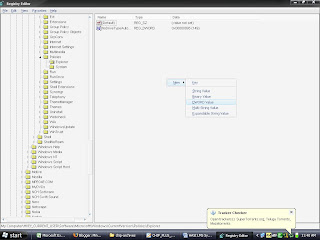
Type ‘NoTrayItemsDisplay’, double-click it and enter the value ‘1’.
Close the registry editor and reboot.
Ref: Chip
Click ‘Start’ and type ‘regedit’.
Go to ‘HKEY_CURRENT_USER|Software|Microsoft|Windows|Current Version|Policies|Explorer’.
Right-click on the left pane and ‘New|DWORD (32-bit) Value’.

Type ‘NoTrayItemsDisplay’, double-click it and enter the value ‘1’.
Close the registry editor and reboot.
Ref: Chip
How to display Run entry on Start Menu in Vista?
In Windows Vista, the Run entry on the Start menu is not readily available. I bet people who are used to older Windows Versions will always find it difficult. However if you are habituated to using Run on the Start menu, as it was in the previous Windows versions, here is what you need to do to activate it. So Check this: -
Right click ‘Start | Properties’.
In ‘Start’ menu, click ‘Customize’.
Scroll down, locate the ‘Run command’ check box.
Select and click on the ‘OK’ button to save the changes.
Ref: Chip
Right click ‘Start | Properties’.
In ‘Start’ menu, click ‘Customize’.
Scroll down, locate the ‘Run command’ check box.
Select and click on the ‘OK’ button to save the changes.
Ref: Chip
How to remove shortcut arrows in Vista?
Windows Vista Ultimate has an amazing graphical interface like you’ve never seen before. Wonder why?An arrow appears on every shortcut that is placed on the desktop or anywhere on the computer. But this can be very annoying and you may want to remove them some point of time. But you feel it difficult? All you need to do is edit the registry.Follow the steps listed below to do so. But do this carefully and if you want, take a back up before:
- Click ‘Start’ and type ‘regedit’
- Expand on folder named the ‘HKEY_CLASSES_ROOT’.
- Click the ‘Inkfi le’ folder.Type ‘AriochIsShortcut’ instead of ‘IsShortcut’
- Once close regedit and reboot.
- The arrows no longer appear on the shortcut icons.To reverse the process, replace ‘IsShortcut’ with ‘AriochIsShortcut’ and reboot the system.
How to create your own E-Card?
Creating personalized post cards is always fun! Most of the popular e-cards sites provide you with an option to customize your own holiday postcards. But all you can do on the websites is add your own or custom images. But with the help of this article, you can personalize your card for every occassion, along with the perfect text...you desire and its all yours buddy!!!
1. Visit http://www.photo-card-maker.com/download.html
2. Download the software Photo Card Maker. Install it by double clicking the EXE
3. Start the program once you install it and it looks like below

4. Click on “Select Template”. Select a template through the “Category” drop-down
menu. Click on a template in the main window. Click “OK”.
5. To change text on the card, click on “Text”. You can add new text, change the font face, size and color on your card. You can clear out the text by clicking on “Delete”.

6. You can place personalized images on every template. Click on “Photo”. Browse and open the image. Scale according to your requirement. Click outside the image.
7. To make changes in the future, click on “Template” and click on “Save Template”. Your text elements will be preserved, but your image will be discarded.
8. To save the card as a *.jpg image, click on the “Save” button. Browse for the location, and type an approriate file name. Your card is ready to be mailed now!!
1. Visit http://www.photo-card-maker.com/download.html
2. Download the software Photo Card Maker. Install it by double clicking the EXE
3. Start the program once you install it and it looks like below

4. Click on “Select Template”. Select a template through the “Category” drop-down
menu. Click on a template in the main window. Click “OK”.
5. To change text on the card, click on “Text”. You can add new text, change the font face, size and color on your card. You can clear out the text by clicking on “Delete”.

6. You can place personalized images on every template. Click on “Photo”. Browse and open the image. Scale according to your requirement. Click outside the image.
7. To make changes in the future, click on “Template” and click on “Save Template”. Your text elements will be preserved, but your image will be discarded.
8. To save the card as a *.jpg image, click on the “Save” button. Browse for the location, and type an approriate file name. Your card is ready to be mailed now!!
June 06, 2009
ERROR 0189: Invalid RFID Configuration Information Area
I have read this post in some magazine. This is for the laptop guys and gals!When a user switch on the laptop, he/she might receive an error like:
ERROR 0189: Invalid RFID Configuration Information Area. PRESS (F1) to Setup.
Even if you load the setup defaults in the BIOS, this doesnt help. So if you want to know what exactly it is to some extent, pretty simple yet hard for you!!! The BIOS might have a problem buddy.This can be solved by your manufacturer service center.In order to restore your operating system to normal, you may have deleted some partition originally created on the hard drive by manufacturer. In the mean while, you can press the [ESC] key to continue booting
regularly till you get the problem solved by your manufacturer's help center.
ERROR 0189: Invalid RFID Configuration Information Area. PRESS (F1) to Setup.
Even if you load the setup defaults in the BIOS, this doesnt help. So if you want to know what exactly it is to some extent, pretty simple yet hard for you!!! The BIOS might have a problem buddy.This can be solved by your manufacturer service center.In order to restore your operating system to normal, you may have deleted some partition originally created on the hard drive by manufacturer. In the mean while, you can press the [ESC] key to continue booting
regularly till you get the problem solved by your manufacturer's help center.
Windows cannot find "C:\WINDOWS\ eksplorasi.exe"
Attimes, when windows starts up, you get the message -
Windows cannot find “C:\WINDOWS\eksplorasi.exe”. Make sure you typed the name correctly, and then try again.
So this error indicates that there is a missing file needed for windows to start a particular program properly. There is no issue with the startup of the OS. Just delete it from the startup folder in the Start Menu and uncheck the line that specifies it in the 'Msconfig'.Even then if the problem doesnt solve, use 'hijackthis.exe' or manually find the line in the registry using Regedit. Do backup the registry before trying these!!!
Usually you should find the lines in the following paths in the registry:
Computer\HKEY_CURRENT_USER\Software\Microsoft\Windows\CurrentVersion\Run
Computer\HKEY_CURRENT_USER\Software\Microsoft\Windows\CurrentVersion\Run\RunOnce
Computer\HKEY_LOCAL_MACHINE\SOFTWARE\Microsoft\Windows\CurrentVersion\Run
Computer\HKEY_LOCAL_MACHINE\SOFTWARE\Microsoft\Windows\CurrentVersion\RunOnce
Ref: Chip
Note: I suggest you not play around with the registry unless and until you are way too smart than the registry if you know what I mean.
Windows cannot find “C:\WINDOWS\eksplorasi.exe”. Make sure you typed the name correctly, and then try again.
So this error indicates that there is a missing file needed for windows to start a particular program properly. There is no issue with the startup of the OS. Just delete it from the startup folder in the Start Menu and uncheck the line that specifies it in the 'Msconfig'.Even then if the problem doesnt solve, use 'hijackthis.exe' or manually find the line in the registry using Regedit. Do backup the registry before trying these!!!
Usually you should find the lines in the following paths in the registry:
Computer\HKEY_CURRENT_USER\Software\Microsoft\Windows\CurrentVersion\Run
Computer\HKEY_CURRENT_USER\Software\Microsoft\Windows\CurrentVersion\Run\RunOnce
Computer\HKEY_LOCAL_MACHINE\SOFTWARE\Microsoft\Windows\CurrentVersion\Run
Computer\HKEY_LOCAL_MACHINE\SOFTWARE\Microsoft\Windows\CurrentVersion\RunOnce
Ref: Chip
Note: I suggest you not play around with the registry unless and until you are way too smart than the registry if you know what I mean.
How to enable or disable autorun or autoplay for CDs,DVDs,USBs?
After some time or may be anytime, everyone will have seen this error. This is not actually error as you can still open the CD via "Open" button in the context menu. However the regular autoplay feature doesn't work. As soon as the CD or DVD is inserted, the programs start from them. Sometimes they don't.
You can enable or disable the feature of using autorun for removable devices like CD ROM or USB devices. Please carryout the below steps to avail of these features:-

You can enable or disable the feature of using autorun for removable devices like CD ROM or USB devices. Please carryout the below steps to avail of these features:-
- Go to 'Start | Run'
- Type 'gpedit.msc' and press enter (The group policy editor can be used to enable/disable access to diff levels of security). This is how it would look

- Go to User Coniguration | Administrative Templates | System’ in the left panel of the ‘Group Policy Object Editor’ as shown.
- Double click on ‘Turn off Autoplay’ in the right panel and choose ‘Disabled’
- Save all settings and exit. Restart you computer and your problem should be solved
June 05, 2009
Flash Websites to be fully searchable!
Google, Yahoo and other search engines will soon be able to index the dynamic contents of Flash websites and display their contents in their lists of results. Search engines have so far only been able to track static text and links in container
pages behind the rich, interactive SWF iles,making information contained within them
dificult to ind. Now, Adobe has announced a tie-up with search engine companies to
develop methods of searching through Flashfiles.
The company will provide Google and Yahoo with optimized Flash players that can
reveal and index text and web links from each frame of a Flash animation. The move should increase the number of websites which use Flash and other rich content, as designers become less apprehensive about their content not being searchable.
Ref: Chip
pages behind the rich, interactive SWF iles,making information contained within them
dificult to ind. Now, Adobe has announced a tie-up with search engine companies to
develop methods of searching through Flashfiles.
The company will provide Google and Yahoo with optimized Flash players that can
reveal and index text and web links from each frame of a Flash animation. The move should increase the number of websites which use Flash and other rich content, as designers become less apprehensive about their content not being searchable.
Ref: Chip
How to login safely even without a cursor?
Windows sometimes forgets the cursor on the Welcome screen, so you cannot click to enter the login password. But a restart is very annoying rgt? So how can we login then? I have a very useful one here for you.
In many cases, this problem occurs after a user logs of.However, a restart is not necessary or rather not recommended, since it also logs of other active users and destroys data that might not have been saved and takes an unnecessarily long time to reboot in the process.Instead, you
can deal with the problem by using the classic logon dialog box. If Windows doesnt welcome you with a cursor, you can login thru the classic dialog box.
For that, press the [Ctrl] + [Alt] + [Del] keyboard shortcut twice in succession. Another login dialog box, probably familiar from earlier versions of Windows, appears. Enter the username as well as password here.
Note: This method works only after a user logs of and not for fast switching.
In many cases, this problem occurs after a user logs of.However, a restart is not necessary or rather not recommended, since it also logs of other active users and destroys data that might not have been saved and takes an unnecessarily long time to reboot in the process.Instead, you
can deal with the problem by using the classic logon dialog box. If Windows doesnt welcome you with a cursor, you can login thru the classic dialog box.
For that, press the [Ctrl] + [Alt] + [Del] keyboard shortcut twice in succession. Another login dialog box, probably familiar from earlier versions of Windows, appears. Enter the username as well as password here.
Note: This method works only after a user logs of and not for fast switching.
General
This section would consist of usual queries or tips and tricks useful for general purpose. Refer the posts so that you can have a better idea:
How to connect your computer to a Television or TV?
How to create your own E-Card?
Noise from within system. What to do?
How to resize the partitions of your harddrive?
How to install Windows Media Player 11 without WGA check or without validation for XP?
How to connect your computer to a Television or TV?
How to create your own E-Card?
Noise from within system. What to do?
How to resize the partitions of your harddrive?
How to install Windows Media Player 11 without WGA check or without validation for XP?
Web | Internet
This section is dedicated to the Internet usage. This section tells you all that you need on Web including browsers,routers,chat,Increase speed etc.,
Below are the various articles provided: -
Below are the various articles provided: -
- 10 Must have Firefox AddOns
- g talk - Quick Shortcuts!
- How to Increase your download speed
- How to Convert Word to PDF?
- How to Convert PDF to Word or Excel?
Windows XP | Windows Vista | Windows 98
This section would discuss various tips and tricks to improve the user experience and even improve the system performance. Please go through the below articles:
- How to defragment your hard drives in a jiffy?
- How to change your LOGON screen?
- How to delete a USB drive or USB device’s hardware signature?
- How to find bad memory in vista?
- How to use USB Flashdrives in Windows 98?
- How to make your XP look like vista?
- How to restrict the users of a system from using USB devices or DVDROMS?
- How to login safely even without a cursor?
- How to enable or disable the autorun or autoplay feature for CD, DVD, USB?
- How to display RUN on Start Menu in Vista?
- How to remove Shortcut arrows in Vista?
- How to change the timer and how to remove unwanted OS Start up option on Boot screen?
- How to remove the System Tray on your monitor?
- How to increase Windows Startup speed?
- How to optimize display settings for best performance and excellent display?
- How to speed up the Offline browsing speed in your computer?
- How to remove unused programs and files?
- How to disable file Indexing and improve PC Speed?
- How to enable DMA and increase PC Speed?
- How to run disk clean up and improve PC Speed?
- How to reduce Page file size and improve PC Speed?
- How to speedup file browsing in your system?
- How to optimize your display settings for best performance and not losing visually?
- How to clean your temporary Internet files from IE6?
- How to rename your disk drives in My Computer?
- How to start the system console in a required size immediately?
- How to delete the restore points and shadow copies in windows 7?
Microsoft Excel
Below are the various posts in this category. Please go through which one might suffice your requirement: -
1. Innovative Tips for Excel
1. Innovative Tips for Excel
Service pack 3 setup cannot update...Error
At times for some, if you have tried to install XP SP3, after extraction of files, you might have received this error -
Service pack 3 setup cannot update a checked (debug) system with a free (retail) version of Service Pack 3, or vice versa

The reason behind this problem is...
multiple builds exist,each of which require their own version of the update.Follow these simple steps and your problem should be solved. You would need to use the registry editor for this -
Service pack 3 setup cannot update a checked (debug) system with a free (retail) version of Service Pack 3, or vice versa

The reason behind this problem is...
multiple builds exist,each of which require their own version of the update.Follow these simple steps and your problem should be solved. You would need to use the registry editor for this -
- Click ‘Start | Run...’ and Type ‘regedit’ and press [Enter].
- Then go to ‘HKEY_LOCAL_MACHINE\Software\Microsoft\Windows NT\CurrentVersion’
- In the toolbar on the right, look for a string value "CurrentType". Change its value to ‘checked’. If it is already set to ‘checked’, then set it to ‘Free’ and click
- on ‘OK’.
- Exit the registry editor and try to install Service Pack 3 again. Now it should install without any problems.
Is ‘spider.sav’ a virus?
Is 'spider.sav' a virus?
You might have observed this file pretty frequently in your My Documents folder.Even if you delete this, it appears again! Whats the thing here?
Dont worry! You will laugh now.
Firstly remember ‘Spider.sav’ is not a virus, but is a saved game of Spider
Solitaire, the game that comes with the Windows. :)
The options in the game might be set to automatically save on exit. You don’t need to worry about the file, it is a Windows file.
You might have observed this file pretty frequently in your My Documents folder.Even if you delete this, it appears again! Whats the thing here?
Dont worry! You will laugh now.
Firstly remember ‘Spider.sav’ is not a virus, but is a saved game of Spider
Solitaire, the game that comes with the Windows. :)
The options in the game might be set to automatically save on exit. You don’t need to worry about the file, it is a Windows file.
What is the difference between full HD and HD ready?
What is the difference between full HD and HD ready? Hmm...Even I used to get this question pretty frequently! I got this golden article in a magazine and thought would share it with you guys. It was always a confusion between both as they look similar! Honestly, they are more in terms of a marketing strategy. But still if you wanna know the difference,
Full HD usually means video playback at 1080p,which means 1080 horizontal lines with
progressive scanning. HD ready usually means 720p or 1080i, where ‘i’ stands for interlaced scanning.
In terms of pixels, a line resolution of 1080 should guarantee a video output resolution of 1920 x 1080 (vertical x horizontal pixels). If you know, every screen or frame of a TV broadcast is made up of multiple horizontal lines that form a complete picture or frame.
Interlaced resolutions mean that only every alternate line of the video is being shown in one single frame at one time. This means only half the resolution of 1920 x 1080 will be on the screen at one time; if you were to number them all you would first see all the odd-numbered lines and then all the even-numbered ones. They are switched so rapidly that the eye constructs a single continuous image, but effectively you are watching your videos play at reduced quality.
Full HD (1080p) includes the lower specified resolutions, but also adds the ability to display all 1080 lines for each frame, instead of just alternating halves. The entire screen area of 1920 x 1080 pixels will be active at all times.
Videos playing at 1080p will have more detail and better overall quality."HD ready" displays are therefore cheaper than Full HD, and are usually the only choice with smaller sized panels. In any case, these displays are usually not used to their full potential in India as HD TV broadcasts are unavailable, and Blu-Ray discs are still quite expensive.
Ref: Chip
Check out the following link for an in-depth explanation of HD:
http://en.wikipedia.org/wiki/High-definition_television
Full HD usually means video playback at 1080p,which means 1080 horizontal lines with
progressive scanning. HD ready usually means 720p or 1080i, where ‘i’ stands for interlaced scanning.
In terms of pixels, a line resolution of 1080 should guarantee a video output resolution of 1920 x 1080 (vertical x horizontal pixels). If you know, every screen or frame of a TV broadcast is made up of multiple horizontal lines that form a complete picture or frame.
Interlaced resolutions mean that only every alternate line of the video is being shown in one single frame at one time. This means only half the resolution of 1920 x 1080 will be on the screen at one time; if you were to number them all you would first see all the odd-numbered lines and then all the even-numbered ones. They are switched so rapidly that the eye constructs a single continuous image, but effectively you are watching your videos play at reduced quality.
Full HD (1080p) includes the lower specified resolutions, but also adds the ability to display all 1080 lines for each frame, instead of just alternating halves. The entire screen area of 1920 x 1080 pixels will be active at all times.
Videos playing at 1080p will have more detail and better overall quality."HD ready" displays are therefore cheaper than Full HD, and are usually the only choice with smaller sized panels. In any case, these displays are usually not used to their full potential in India as HD TV broadcasts are unavailable, and Blu-Ray discs are still quite expensive.
Ref: Chip
Check out the following link for an in-depth explanation of HD:
http://en.wikipedia.org/wiki/High-definition_television
Bluetooth over Wi-Fi brings huge speed boosts!!
A new Bluetooth specification for portable devices will piggyback on their built-in Wi-Fi hardware to accelerate file transfer speeds by a huge margin. The process, technically known as
Alternate MAC/PHY will reportedly become an official addition to the Bluetooth specification this April.
It involves having devices search for and recognize each other using standard Bluetooth handshake protocols, and then handing over actual file transfers to the devices' Wi-Fi hardware using an ad-hoc connection while control over the connection remains with the Bluetooth controller. Speeds could jump upto Wi-Fi's current 54 Mb/s rating. But that's not all! According to Broadcom, some of its chips already in circulation can be upgraded with just a firmware flash.
Ref: Chip
Alternate MAC/PHY will reportedly become an official addition to the Bluetooth specification this April.
It involves having devices search for and recognize each other using standard Bluetooth handshake protocols, and then handing over actual file transfers to the devices' Wi-Fi hardware using an ad-hoc connection while control over the connection remains with the Bluetooth controller. Speeds could jump upto Wi-Fi's current 54 Mb/s rating. But that's not all! According to Broadcom, some of its chips already in circulation can be upgraded with just a firmware flash.
Ref: Chip
USB standard for phone chargers
This important news was published in a recent magazine! :)
It should have been done a long time ago, but 17 manufacturers including Nokia, Sony Ericsson and Samsung have just agreed to drop their own connectors in favor of micro USB plugs and
sockets to charge the majority of their phones by 2012. The move will help reduce e-waste.
Phones might not even ship with chargers in the future, which will cut costs as well.
Ref: Chip
It should have been done a long time ago, but 17 manufacturers including Nokia, Sony Ericsson and Samsung have just agreed to drop their own connectors in favor of micro USB plugs and
sockets to charge the majority of their phones by 2012. The move will help reduce e-waste.
Phones might not even ship with chargers in the future, which will cut costs as well.
Ref: Chip
Standards created for hard drive encryption!
Six of the world's biggest hard drive manufacturers—Fujitsu, Hitachi, Toshiba, Samsung, Seagate, and Western Digital have announced their support for a broad set of standards aimed at creating common ground for full-drive encryption. The Trusted Computing Group (TCG), an industry body which promotes security measures including the use of unique master keys to secure the data on a computer.
Internal and external drives that adopt the standards set down by the TCG will require passwords when plugged into any computer, meaning data cannot be compromised by the physical theft of a laptop or storage device. Yet, these drives will remain interoperable with all standard computer hardware.Data security is becoming a legal requirement in many parts of the world for businesses and large enterprises.
Ref: Chip Recent Article
Internal and external drives that adopt the standards set down by the TCG will require passwords when plugged into any computer, meaning data cannot be compromised by the physical theft of a laptop or storage device. Yet, these drives will remain interoperable with all standard computer hardware.Data security is becoming a legal requirement in many parts of the world for businesses and large enterprises.
Ref: Chip Recent Article
June 03, 2009
How to degragment the hard drives in a jiffy?
Today I tell you the easiest way of running your computer smoothly. You know as time proceeds and you fill the drives with lots of data, your cutie pie PC might be little slow or can be annoyingly slow at times. So what are you gonna do? Yeah I can suggest a hell lot of methods. I will be coming up with the best one in my upcoming articles. But for everyone - The below article will be of utmost help so that you can defragment your drives in a jiffy!
Bottomline - For the system to work smoothly,the hard disk must be defragmented
regularly. However, using the Start menu to open the Disk Manager each time becomes cumbersome. An easier way?
With an entry in the registry,you can expand the context menu for disk drives to include the command to defragment them directly :) How?
Do the following step by step -
Now as soon as you right-click on any drive in Windows Explorer, you can defragment it through the new context menu item you just created.
Note: To create a key in the registry and to use the new context command you must be logged on to the computer with administrator rights.
Ref: Chip
Bottomline - For the system to work smoothly,the hard disk must be defragmented
regularly. However, using the Start menu to open the Disk Manager each time becomes cumbersome. An easier way?
With an entry in the registry,you can expand the context menu for disk drives to include the command to defragment them directly :) How?
Do the following step by step -
- Select ‘Start | Run’, enter ‘regedit’ and press [Enter].
- In the Registry Editor, navigate to the key ‘HKEY_CLASSES_ROOT\Drive\shell’.
- There,create a sub-key ‘Defrag’ through ‘Edit | New | Key’.
- This is only the name of the entry in the context menu. Under that create the sub-key ‘Command’ for the actual program call.
- Now select the ‘Command’ key by clicking it and then double-click on the character string ‘Default’ in the right pane.
- In the following dialog box, enter the ‘Value data’ with Defrag.exe %1
- The variable ‘%1’ gives the selected diskdrive letter to the tool ‘defrag.exe’. Close the registry. The change is immediately effective without having to restart the computer.
Now as soon as you right-click on any drive in Windows Explorer, you can defragment it through the new context menu item you just created.
Note: To create a key in the registry and to use the new context command you must be logged on to the computer with administrator rights.
Ref: Chip
system failed to initialize the program - Error
Sometimes when working on computer,a message appears saying "system failed to initialize the program. Problem error 0x000142. Your system has low virtual memory. Click 'OK' to terminate the program"
After this, the desktop becomes blank for the next five to six seconds and later everything becomes normal like nothing ever happened.
This was the error I have seen as well. The above error was reported by a user.Please find the solution for this as given by Chip. But I had resolved the same even before chip gave the solution since I got this error way before :) Anyways read on as how to fix this...
The system is pausing because it is low in memory resources and you might be running heavy programs. Let Windows determine the optimal virtual memory size by erasing any custom settings and coniguring it to System managed size.
To do this, right click on ‘My Computer’ on the desktop and select ‘Properties’. From the ‘System Properties’, click on the ‘Advanced’ tab, and click the ‘Settings’ button in the ‘Performance’ section.
Select the ‘Advanced’ tab in the next open window and click the ‘Change’ button in the ‘Virtual memory’ section.
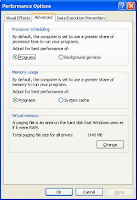
Select the ‘C’ drive and select ‘No paging file’. Click the ‘Set’ button. Then select ‘System managed size’ and click the ‘Set’ button again. Click on ‘OK’ and exit from the settings page.
The restart the computer as asked there but ensure that you have atleast 4GB free space in C Drive if that is where your OS resides.Ensure that Windows Update is enabled to automatically download updates and keep it running smoothly.
After this, the desktop becomes blank for the next five to six seconds and later everything becomes normal like nothing ever happened.
This was the error I have seen as well. The above error was reported by a user.Please find the solution for this as given by Chip. But I had resolved the same even before chip gave the solution since I got this error way before :) Anyways read on as how to fix this...
The system is pausing because it is low in memory resources and you might be running heavy programs. Let Windows determine the optimal virtual memory size by erasing any custom settings and coniguring it to System managed size.
To do this, right click on ‘My Computer’ on the desktop and select ‘Properties’. From the ‘System Properties’, click on the ‘Advanced’ tab, and click the ‘Settings’ button in the ‘Performance’ section.
Select the ‘Advanced’ tab in the next open window and click the ‘Change’ button in the ‘Virtual memory’ section.

Select the ‘C’ drive and select ‘No paging file’. Click the ‘Set’ button. Then select ‘System managed size’ and click the ‘Set’ button again. Click on ‘OK’ and exit from the settings page.
The restart the computer as asked there but ensure that you have atleast 4GB free space in C Drive if that is where your OS resides.Ensure that Windows Update is enabled to automatically download updates and keep it running smoothly.
Outlook cannot perform your search - Error
If you are an user of the Microsoft Outlook 2003, at times you might be facing the problem with the advanced find feature.
The error might say "Outlook cannot perform your search.Outlook cannot display this view. The folder already exists"
Fix: This is because a previously defined Advanced Find search result has been saved and is now possibly corrupt. You will need to delete these saved searches from Outlook.
How to do this?
Ref: Chip
The error might say "Outlook cannot perform your search.Outlook cannot display this view. The folder already exists"
Fix: This is because a previously defined Advanced Find search result has been saved and is now possibly corrupt. You will need to delete these saved searches from Outlook.
How to do this?
- Close Microsoft Outlook and then click 'Start | Run'.
- Type outlook /cleaninders and hit [Enter].
- This command should remove all saved searches from the Outlook mailbox.Sometimes this command does not do the trick immediately. Try it once again,and if it still does not work, download the utility 'PublicFixSearchFolders' from http://www.publicshareware.de/download/PublicFixSearchFolders.zip and run it. Delete the searches found under the Outlook personal folders and then run Outlook again. Your problem should be solved.
Ref: Chip
How to delete a USB drive or USB device’s hardware signature?
This article would help you delete a particular USB Device's hardware signature or a USB Drive from the XP or Vista.
In order to show installed devices that are not currently connected to the computer in the 'Device Manager', follow these steps: -
Note: Sometimes in the ‘Device Manager’ you might have to click on ‘View | Show hidden devices’ in case you cannot view the disconnected hardware devices.

Ref: Chip
In order to show installed devices that are not currently connected to the computer in the 'Device Manager', follow these steps: -
- Click 'Start | All Programs | Accessories | Command Prompt'
- In Command Prompt, type the following command and then press [Enter]:
- set devmgr _ show _nonpresent _ devices=1
- Then type 'start devmgmt.msc' and press [Enter] to open the 'Device Manager'.
- Now you will be able to see all the disconnected USB and other hardware devices in the Device Manager. You can safely delete each one even if they are not connected (shown in grey).
Note: Sometimes in the ‘Device Manager’ you might have to click on ‘View | Show hidden devices’ in case you cannot view the disconnected hardware devices.

Ref: Chip
How to connect a Computer to a Television?
There are different ways to connect a computer to a television.
Here are some of the ways breifly described.
as a computer monitor. Also, the viewing distance of the television is quite far.You will only enjoy watching movies on the television played back through the computer.The reason Why I kept short is just that please dont do this actually as it s really not worth doing this.
Here are some of the ways breifly described.
- If your television set has a VGA connector it is the easiest way,but only LCD TVs usually have this feature.
- If you have a graphics card with a composite or component out feature,you can use this output to connect the computer to a television. [Some graphics cards come with a breakout cable bundled in the package which provides S-video,composite and component video outputs]
- You can also use a VGA-to-composite convertor.
as a computer monitor. Also, the viewing distance of the television is quite far.You will only enjoy watching movies on the television played back through the computer.The reason Why I kept short is just that please dont do this actually as it s really not worth doing this.
How to change the LOGON Screen?
This article will help you as how to change your logon screen.
Vista doesnt allow the user to change the default logon screen. To do this,you might need to install a software.Checkout Logon Studio
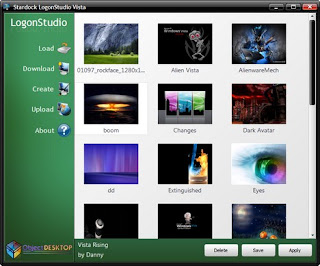
This utility can change the default logon screen as and when required. After you download this, click setup and install it to a location on the harddrive.
Tip: In order to download as many logon screens as you want, you should create a free account on the WinCustomize website. Only then you will be able to download files without the limitations.Click the "Download" button for the same.
As you can see the screenshot, you can load the screens using the "Load" button.
To change the default logon picture using this software,
After you downloaded the logon screens, click the Load button and load them one by one into LogonStudio. Now, select the one you want to use and click on the Apply button.
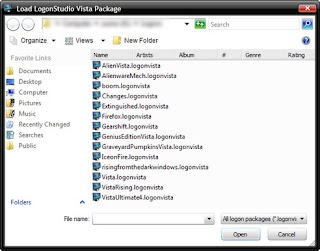
You can also create your own Logons using the "Create" button.
Click create
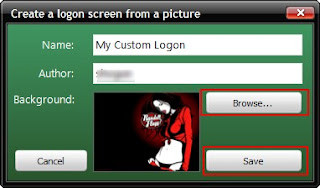
In the resulting window, enter an appropriate name for the pic you want to use and click the "Browse" button to locate it.
Once done, save it. Now go to the main window and simply select the pic and click Apply. And there you go! You have your own new Login screen !!!
Vista doesnt allow the user to change the default logon screen. To do this,you might need to install a software.Checkout Logon Studio

This utility can change the default logon screen as and when required. After you download this, click setup and install it to a location on the harddrive.
Tip: In order to download as many logon screens as you want, you should create a free account on the WinCustomize website. Only then you will be able to download files without the limitations.Click the "Download" button for the same.
As you can see the screenshot, you can load the screens using the "Load" button.
To change the default logon picture using this software,
After you downloaded the logon screens, click the Load button and load them one by one into LogonStudio. Now, select the one you want to use and click on the Apply button.

You can also create your own Logons using the "Create" button.
Click create

In the resulting window, enter an appropriate name for the pic you want to use and click the "Browse" button to locate it.
Once done, save it. Now go to the main window and simply select the pic and click Apply. And there you go! You have your own new Login screen !!!